

The menu bar
itokens keeps running in the menu bar, even with its window closed. Click the orb icon to see your AI at work.
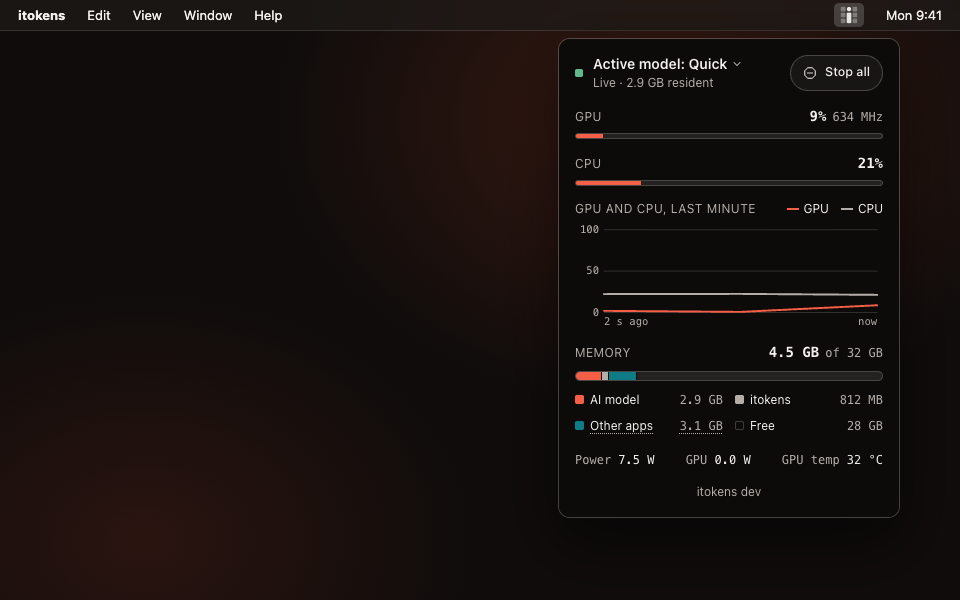
What the panel shows
- Active model: which of your models is answering (Quick, Balanced or Deeper) and whether it is live or loading. Click it for its details: its name and maker, its size, where it came from (picked by itokens or chosen by you) and the memory it uses.
- GPU and CPU use, with the last minute as a graph.
- Memory, in parts, each its own colour: your AI model, its working memory, itokens, other apps, and macOS. Point at (or tap) Other apps to see the apps using the most memory, so you can quit one you are not using to make room. itokens never closes anything itself.
- A download in progress, and how many more are waiting.
- The version of itokens you have.
If the macmon tool is installed, the panel also shows power and GPU temperature, and CPU use comes from it; without it, the CPU line shows the load on your Mac's cores instead. Open itokens brings the window back, and Quit stops everything cleanly, including your AI.
Updates
When a new version of itokens is ready, the orb in the menu bar gets a small dot, and the panel says which version is available with an Update now button. One click starts the updater: it shows each step in a window of its own, closes itokens, installs the new version and opens it again; if your AI is running, it is stopped first. While it updates, the panel says so. See Updates.
When memory runs low
itokens always leaves a fifth of your Mac's memory for macOS and your other apps. If your Mac's memory is still 90% full, the panel and the window say so and ask you to close apps you are not using, and macOS shows one notification. The note goes away once memory is back under 85%.
Stop all
The panel has Stop all too: it stops your AI and everything around it at once. See Stop all.